Guide · about 12 minutes
Roll Jatzo out to your team
For whoever looks after Microsoft 365. Your staff do nothing: the add-in sets itself up the first time each person opens it.
Microsoft takes 24 to 72 hours to push a deployed add-in out to people. That is Microsoft's timing, and nothing Jatzo does changes it. The button will not be on the ribbon on the day you deploy. That is not a failed install, so do not undo it and start again.
Pick the day first
Deploy on a Friday morning
Deploy before lunch on a Friday. The 24 to 72 hour wait then falls across the weekend and your staff find Jatzo waiting for them on Monday. Friday afternoon is too late, because 72 hours from then is Monday evening.
Announce it on the Monday
Tell your staff about Jatzo on the Monday, once the button is really there. Announcing it on the day you deploy creates exactly the confusion the Friday timing avoids: people look, find nothing and ask you why.
Before you start
Check your plan can do this
Any Microsoft 365 plan with Exchange Online and a mailbox, from Business Basic upwards. Microsoft 365 Apps for business and Apps for enterprise include no mailbox, so this cannot reach them.
Check your role
You need a Jatzo team you own and the Exchange Administrator or Global Administrator role. An Exchange Administrator may also need Application Administrator, or App Registrations set to true in Microsoft Entra.
Check the two settings that silently stop it
Either of these off stops centralized deployment with no error at all. Connect with Connect-ExchangeOnline and run this. Blank or True is fine. False on the first blocks every add-in for everybody.
Get-OrganizationConfig | Format-List AppsForOfficeEnabled, EwsEnabled, EwsApplicationAccessPolicyLet two addresses through your web filter
If you filter web traffic, allow app.jatzo.co.uk, which serves the panel, and appsforoffice.microsoft.com, the Microsoft library every Office add-in loads. Blocking either shows the button with an empty panel.
Decide who gets it, and avoid nested groups
Nested groups are not supported, so an All Staff group made of department groups deploys to nobody, silently. Assign individual users or one top level group, and a security group has to be mail-enabled.
In Jatzo
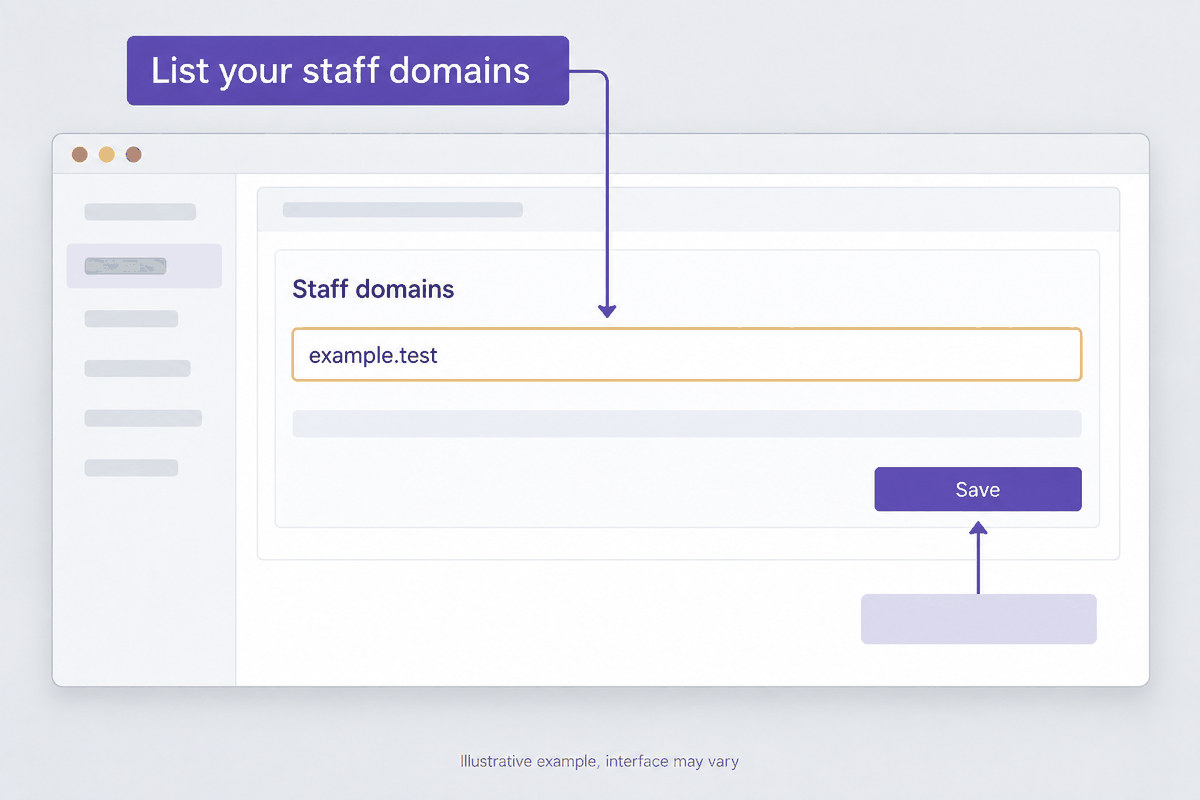
List your staff domains
On your account page, under Your organisation, list the email domains your staff use and save. No file can be created until one is listed: it only sets up mailboxes at your own domains.
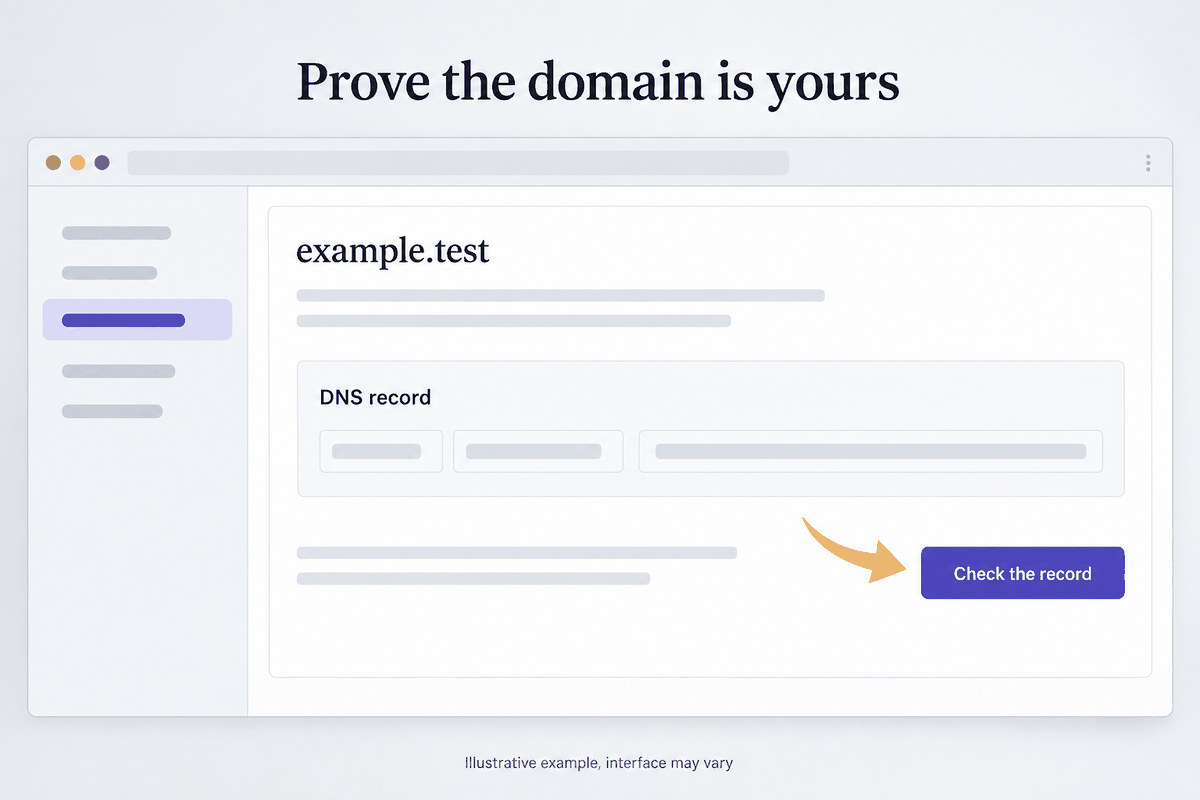
Prove each domain is yours
Publish the DNS record shown for each domain, then select Check the record. Do it within 14 days: an unproved domain sets people up for two weeks and then stops setting up anybody new.
Give yourself a seat for everybody
In Team administration, Subscriptions, set seats to at least the number of people you are deploying to. When the seats run out, the next person is told the team has used every seat it has.
List every domain your staff use
If your people write from more than one domain, list them all. A mailbox at a domain you did not list is turned away with a message saying it is not one the administrator set Jatzo up for.
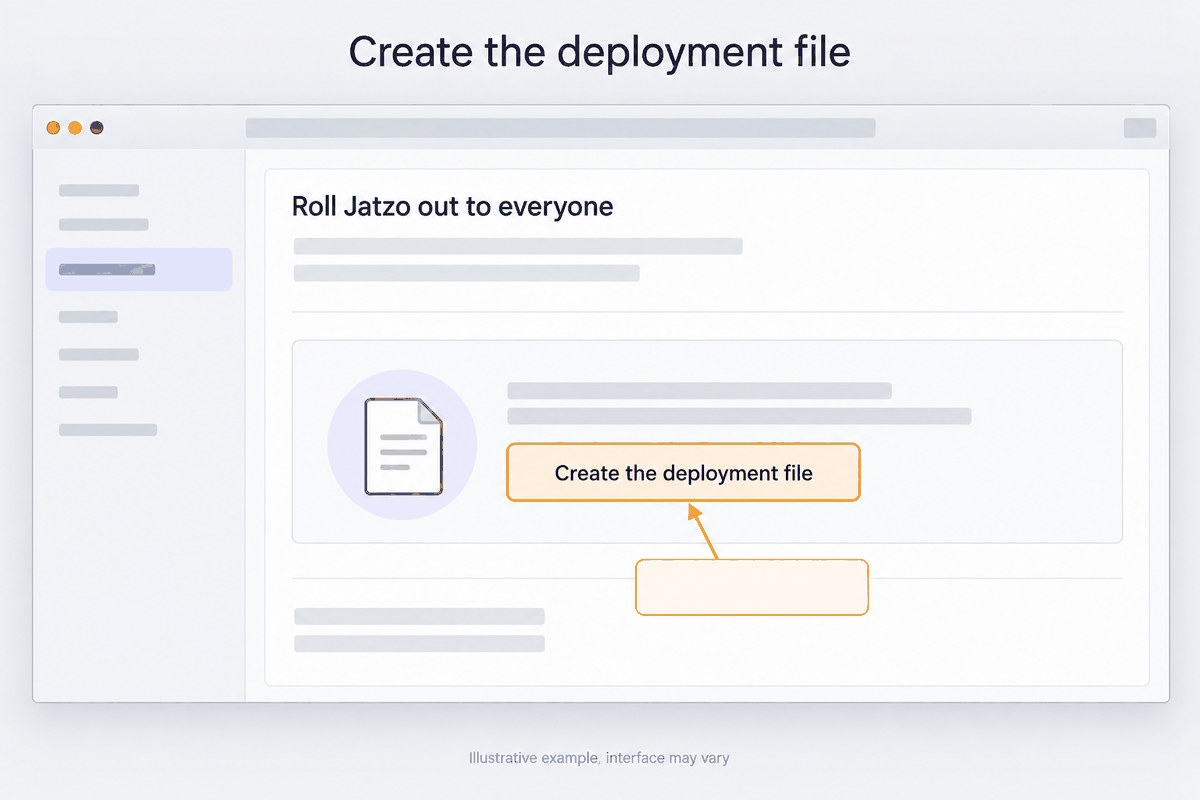
Create the deployment file
Under Roll Jatzo out to everyone, select Create the deployment file and download it. Keep it safe, like a key. Making another file later leaves this one working, up to five files at once.
Retire a file only when you mean to
To stop a file working, select Retire this key beside it on your account page. Every mailbox set up with that file stops working too.
In the Microsoft 365 admin centre
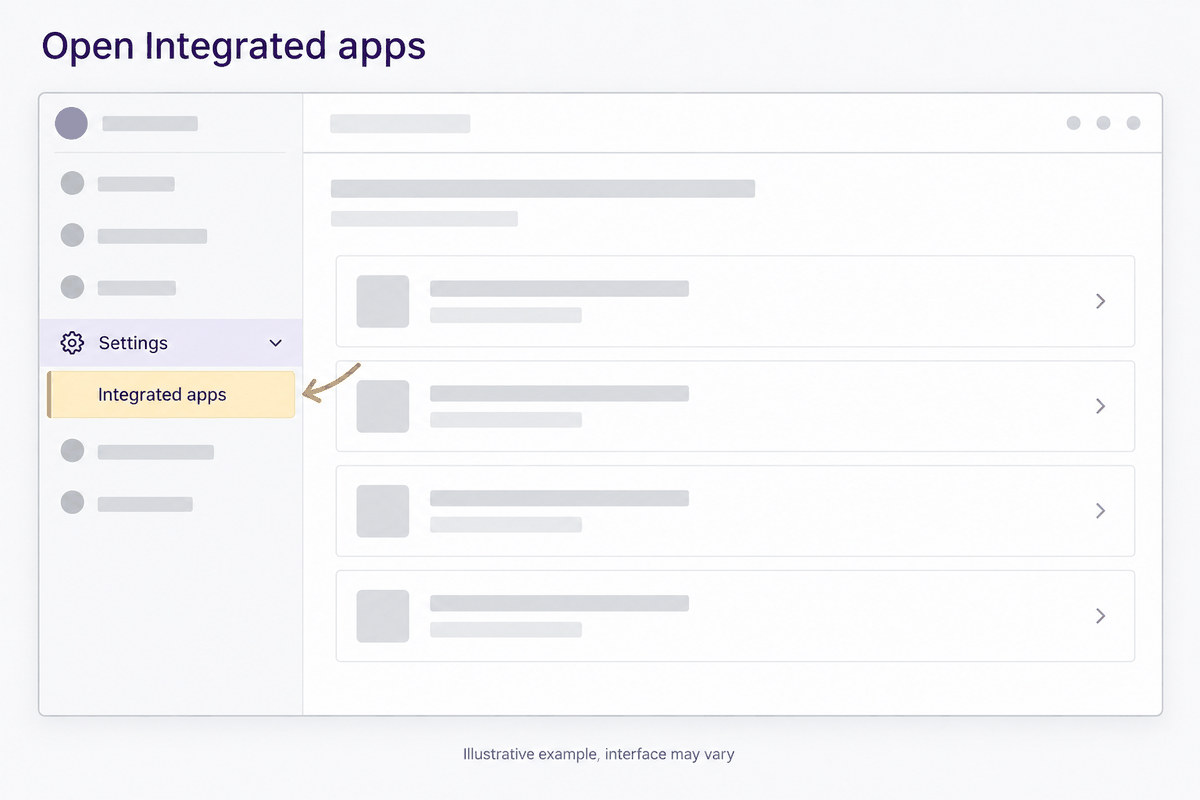
Open Integrated apps
Go to Settings, then Integrated apps.
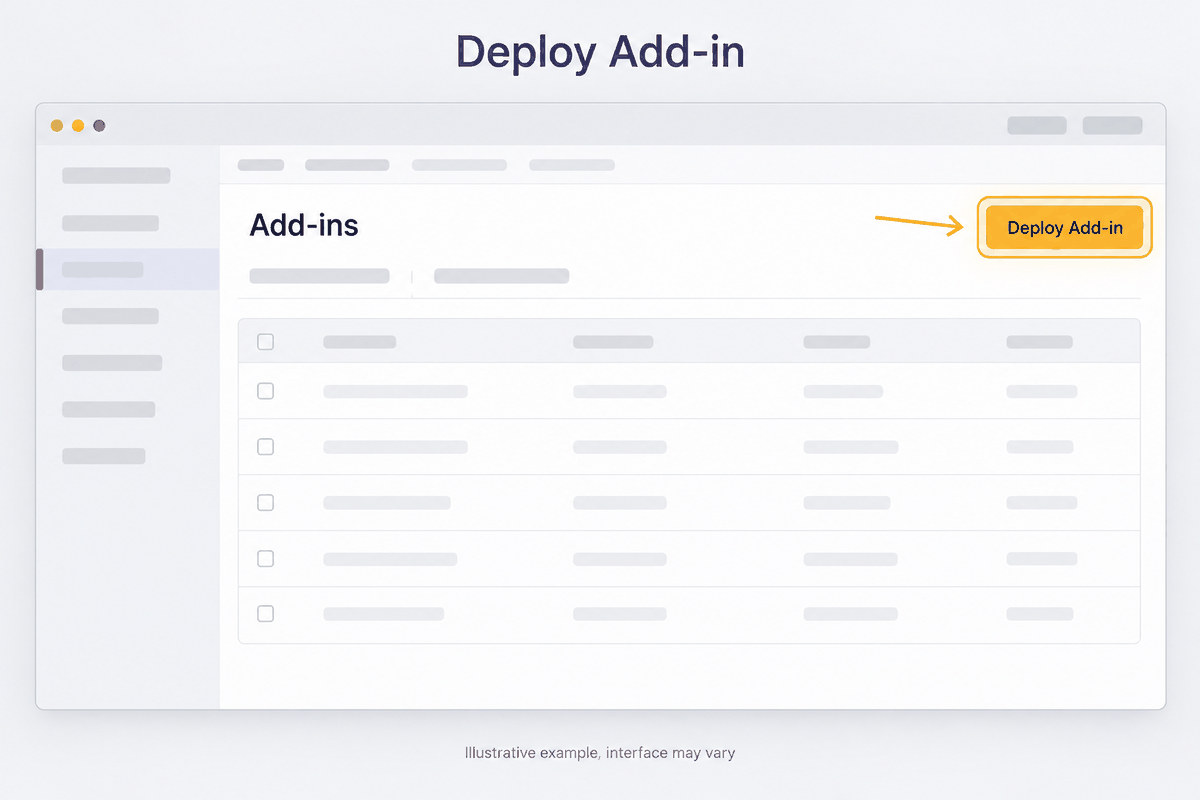
Open Add-ins and choose Deploy Add-in
Select the Add-ins link near the top of the page, then Deploy Add-in.
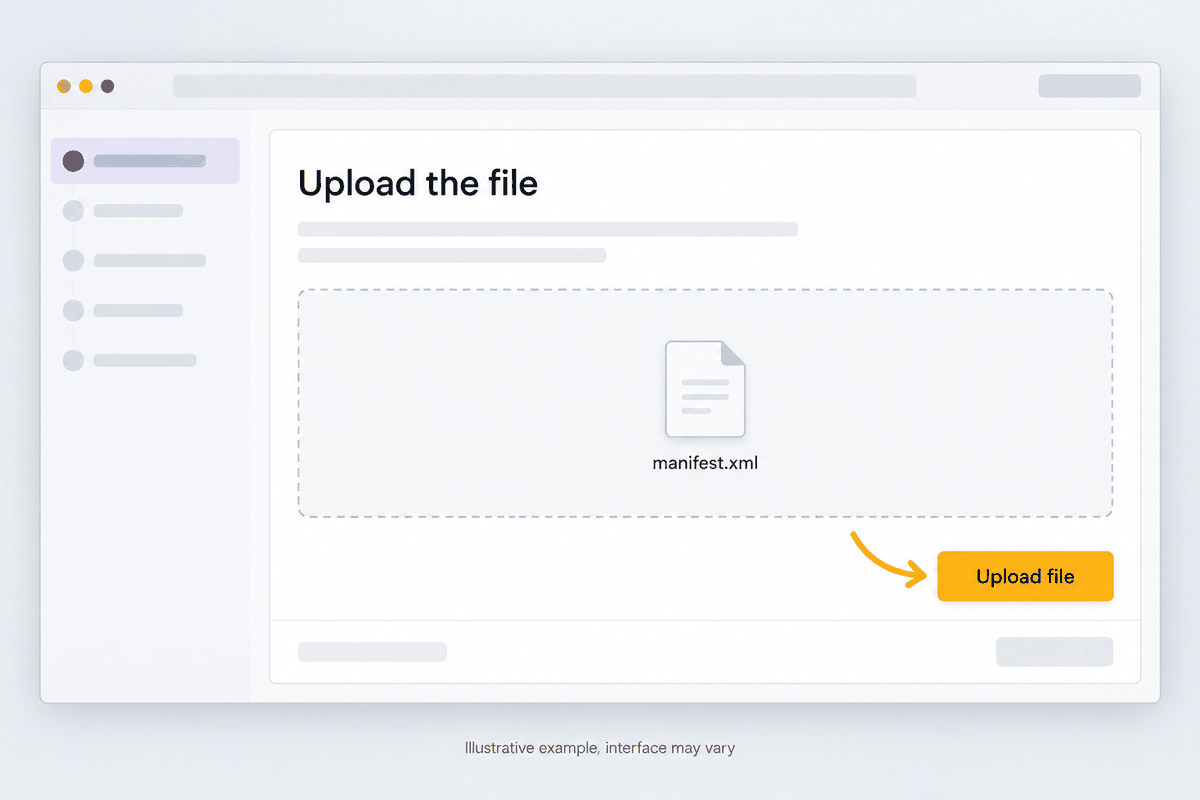
Upload the file
Choose I have the manifest file, then the deployment file you downloaded from Jatzo.
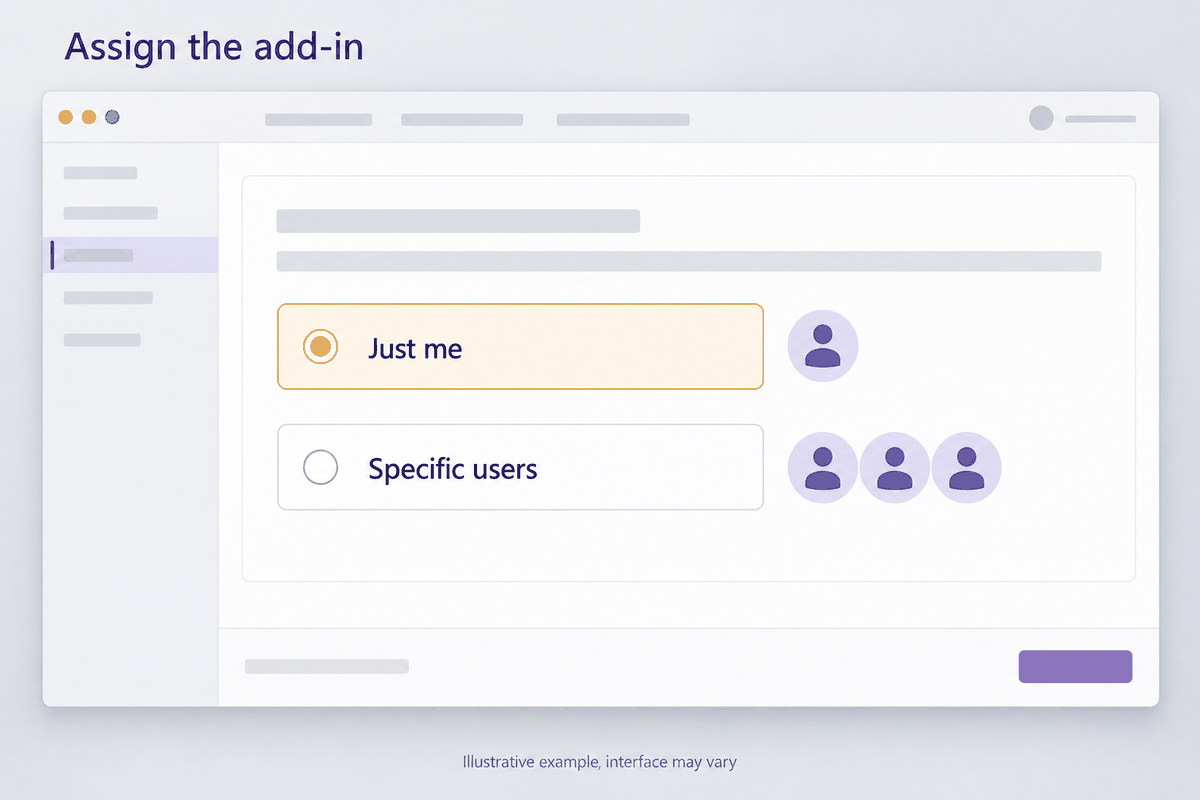
Assign it, to people rather than to a group of groups
Deploy to your own account first and check it, then widen it to the individual users or the one top level group you chose earlier. Fixed means staff cannot remove it themselves.
Then wait, and tell people on Monday
Leave it alone over the weekend
Nothing more to do. Deploying again does not make it arrive sooner, and removing and re-adding it starts the 24 to 72 hours over.
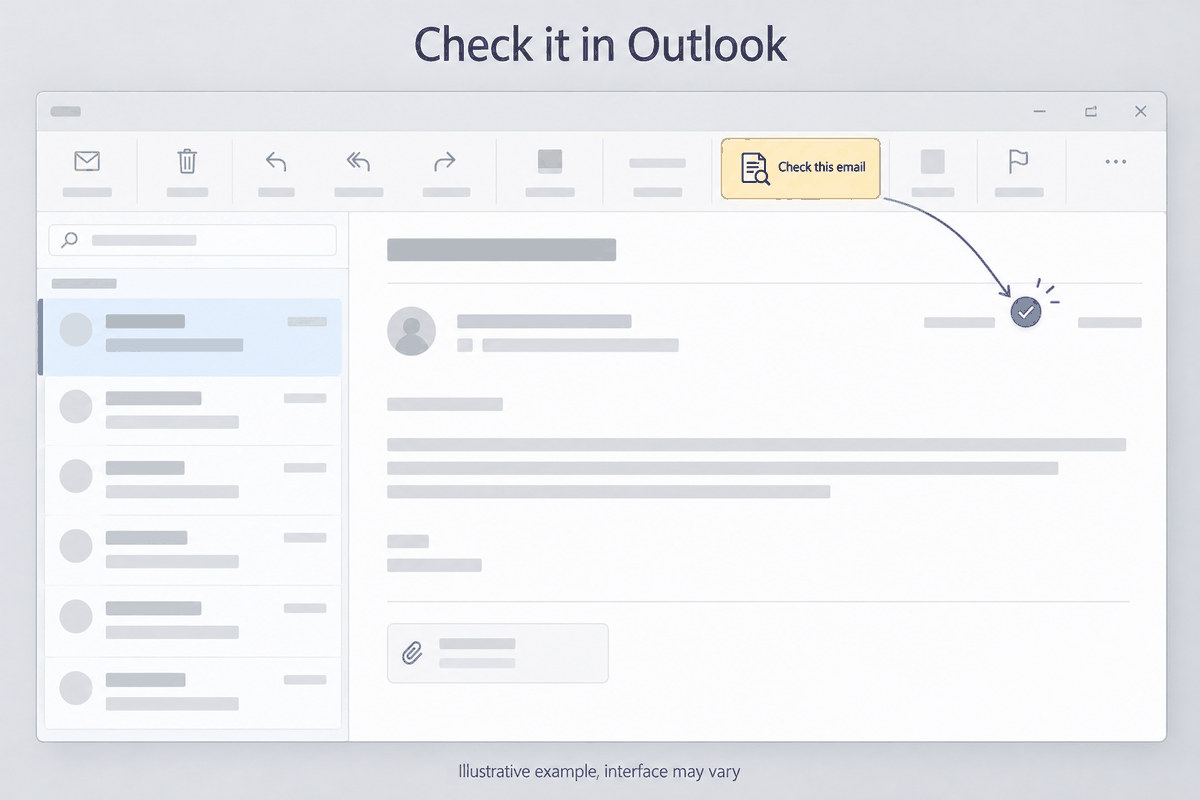
Check it in Outlook on the Monday
Open any email. Jatzo appears on the ribbon with a Check this email button. Check your own mailbox before you tell everybody.
What to tell your staff
Open a suspicious email, select Check this email, and read what Jatzo says. There is nothing to set up, no account to create and no code to type. Their checks come out of the team allowance you pay for.
If the button is still not there
Work through these in order
Has a full 72 hours passed? Is EWS on? Did you assign it to a group of groups? Does the person have an Exchange Online mailbox, an email open, and current Outlook or Outlook on the web?
When somebody leaves
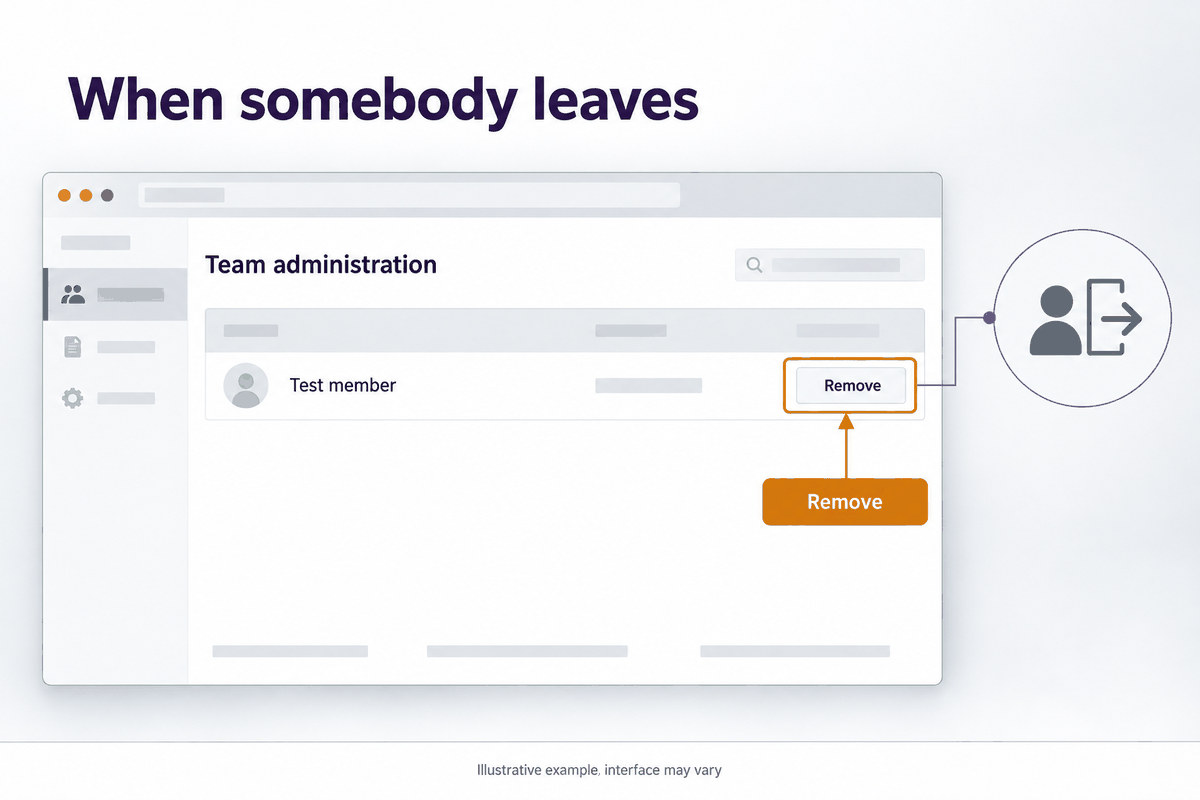
Remove them in Team administration in Jatzo as well as in Microsoft 365. Removing the add-in in Microsoft 365 alone does not end their access, so do both.